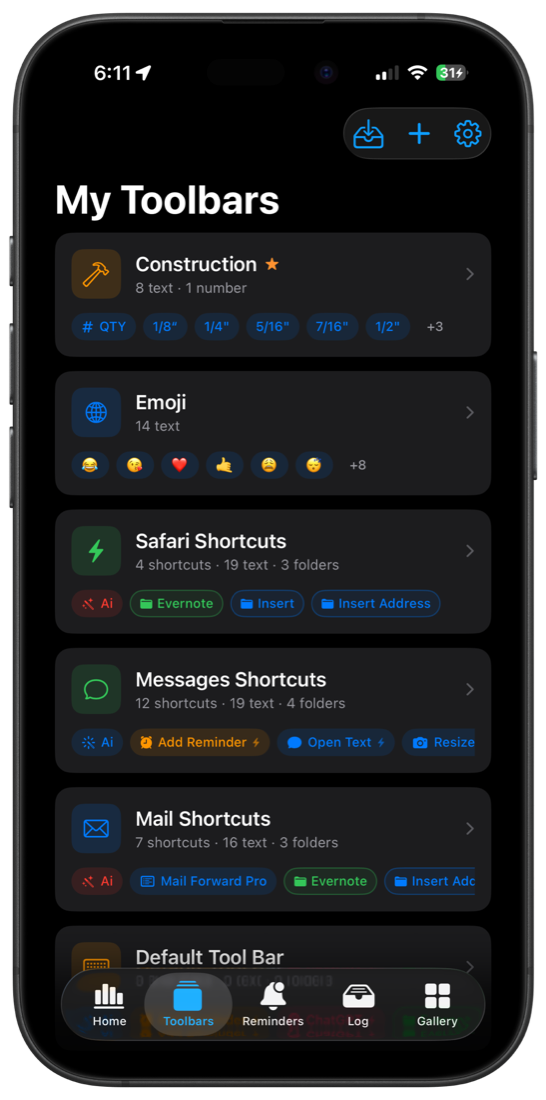
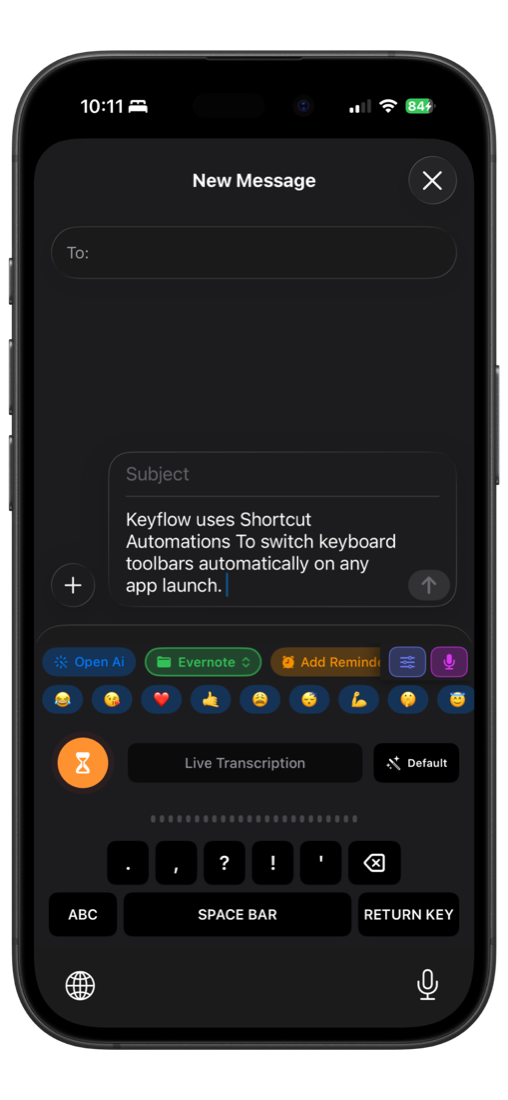
Keyboard-first controls
Keep app-specific actions, folders, AI cleanup, reminders, and dictation within reach while typing.
Keyboard workflow app
Build custom keyboard toolbars for the apps you use every day. Run Shortcuts, insert saved text, open folders, add reminders, dictate, clean up text, and switch preferences without leaving the keyboard.
What it does
Keyflow turns the keyboard into a command surface. Toolbars can hold shortcuts, text inserts, number prompts, URL actions, folders, preference switchers, reminder controls, dictation tools, and log buttons.
Keep app-specific actions, folders, AI cleanup, reminders, and dictation within reach while typing.
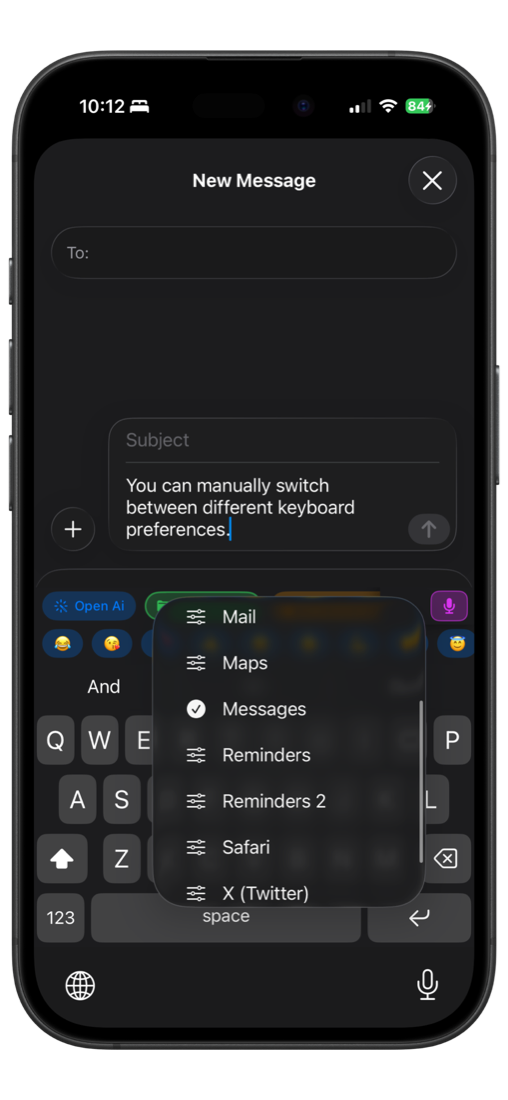
Change keyboard preferences manually, or use Apple Shortcuts automations to activate the right toolbar when an app opens.
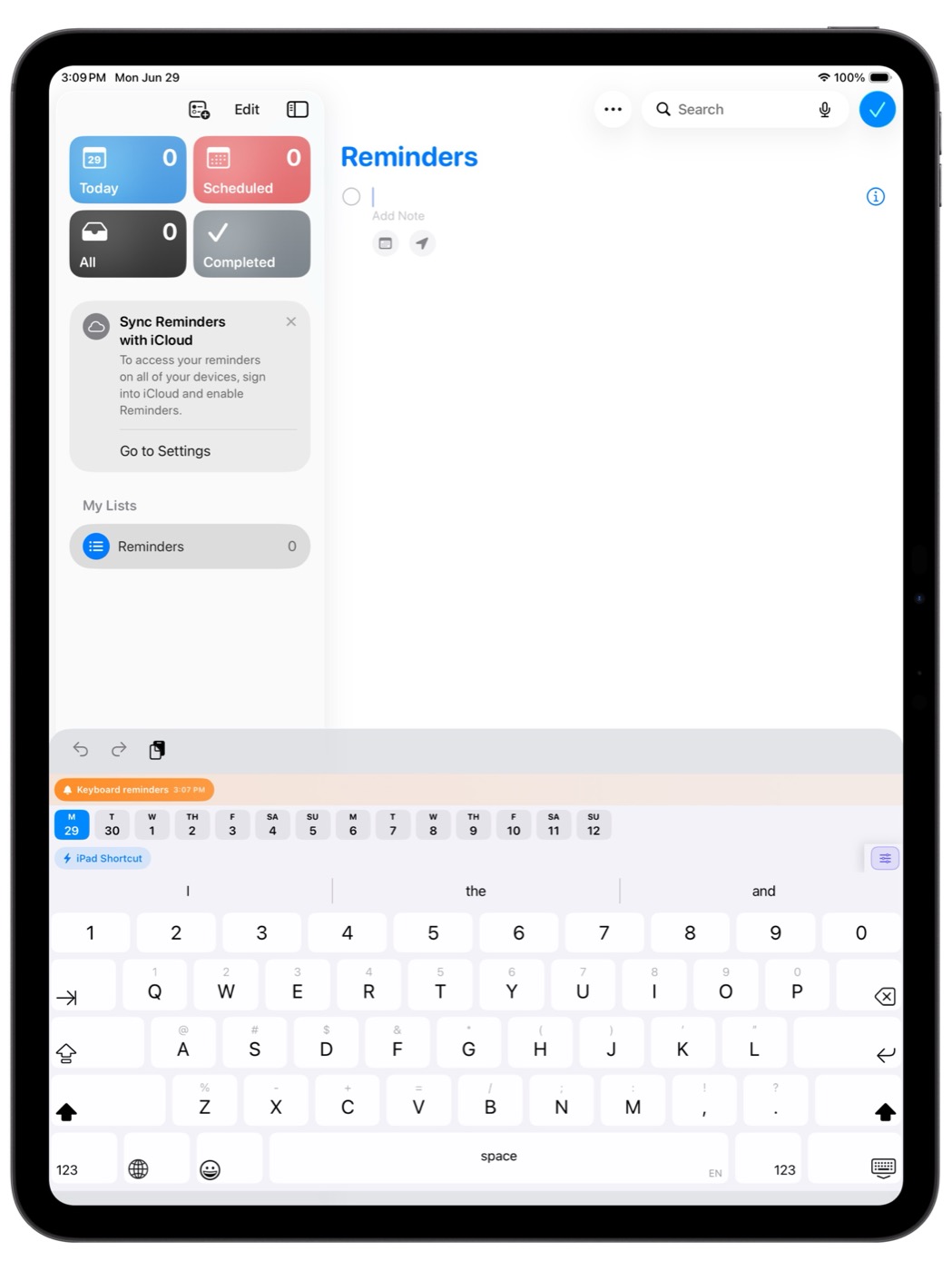
Use Keyflow with compact phone layouts or wide iPad keyboards when you need more room for toolbar rows.
Workflows
Insert quantities, fractions, measurements, labels, and common jobsite phrases from one toolbar.
Trigger Shortcuts for mail forwarding, text cleanup, app actions, logs, and personal routines.
Show reminders as keyboard banners and keep time-sensitive tasks close to the place you type.
Start from downloadable toolbar and shortcut templates, then customize the buttons for your own apps.
Setup
Like every third-party iOS keyboard, Keyflow must be enabled in Settings. Full Access is optional: custom toolbars and nearly all local toolbar actions work without it. Enable it only for features such as clipboard actions, Keyflow Dictation, managed or network-backed AI, and optional research uploads.
Go to Apps -> Keyflow -> Keyboards.
Turn on the Keyflow keyboard. Choose Allow Full Access only for features that need it.
Open any text field and select Keyflow from the keyboard list.
Need help?