Create toolbars
Open the Toolbars tab, tap +, name your toolbar, choose an icon and color, then add shortcut, text, number, action, URL, or folder buttons.
Support for iPhone
Keyflow lets you add shortcut buttons, reusable text, folders, reminders, logs, and dictation tools directly above the iPhone keyboard.
For the fastest help, include your iPhone model, iOS version, Keyflow version, and a short description of what happened.
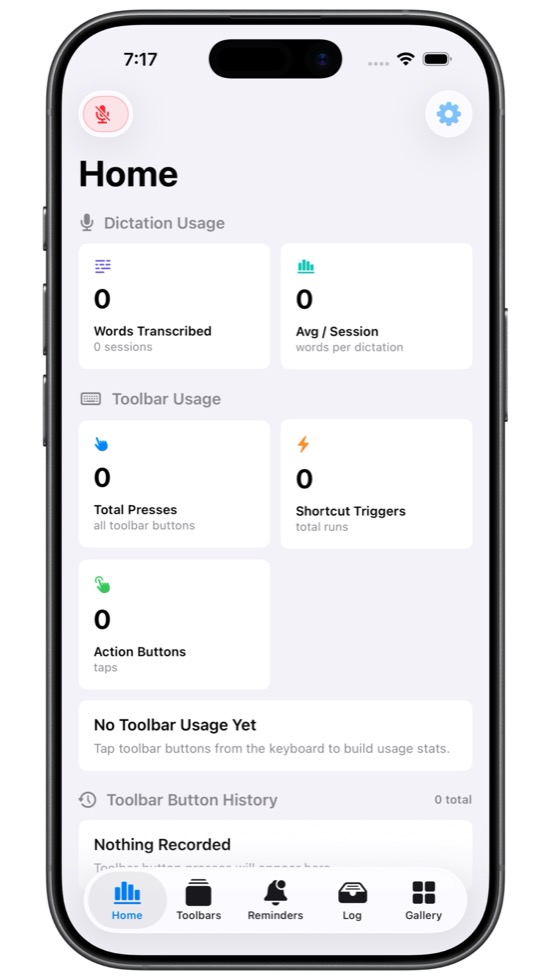
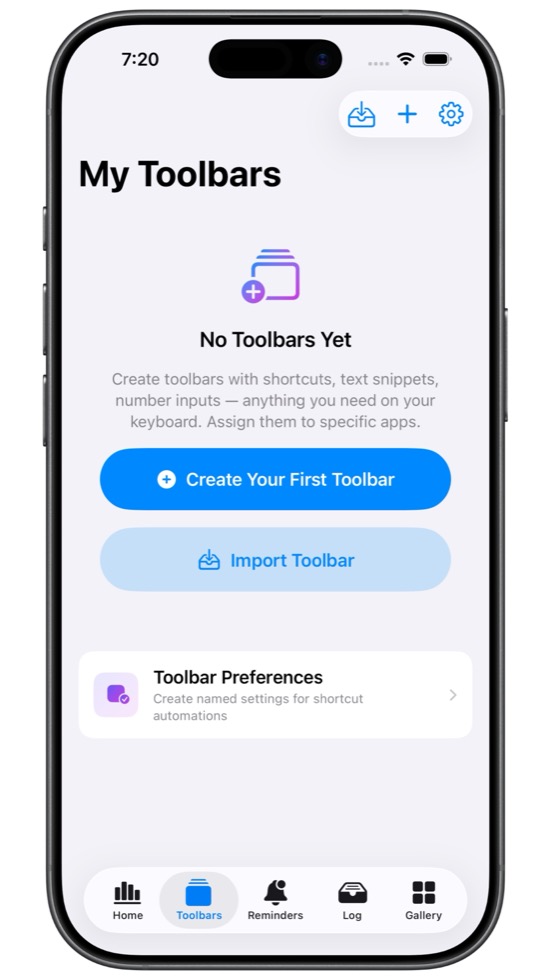
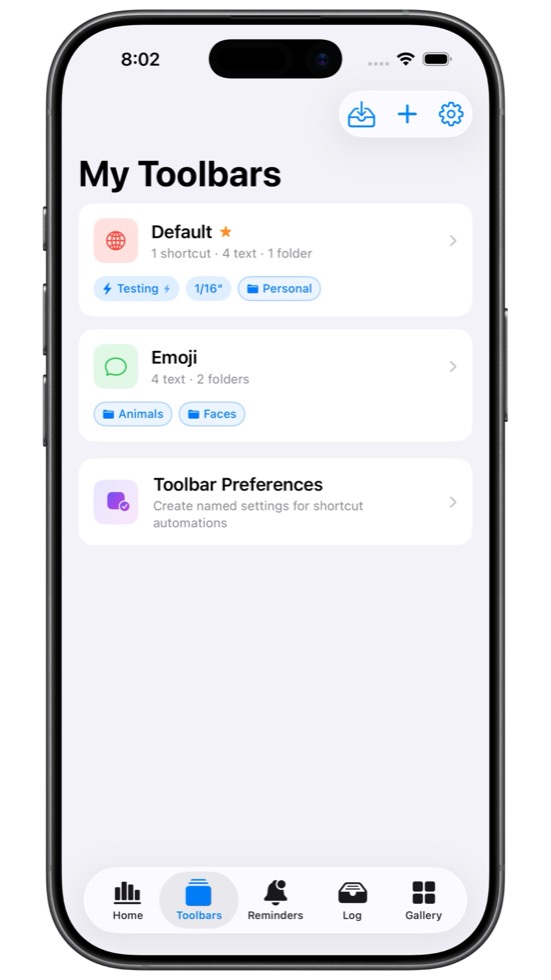
First setup
iOS requires third-party keyboards to be enabled in Settings before they can appear from the globe key.
Scroll to Apps, then tap Keyflow.
Turn on Keyflow in the keyboard list.
Tap Keyflow again, then turn on Allow Full Access only if you want clipboard actions, Keyflow Dictation, managed or network-backed AI, or optional research uploads. Custom toolbars and nearly all local toolbar actions work without it.
Open any text field and press the globe key until Keyflow appears.
Core features
Open the Toolbars tab, tap +, name your toolbar, choose an icon and color, then add shortcut, text, number, action, URL, or folder buttons.
Add a Shortcut button and enter the exact shortcut name from the Apple Shortcuts app. The Gallery includes an Import Shortcut Names helper.
Use Text Insert buttons for common replies, measurements, labels, addresses, emoji, and other text you type often.
Reminders can appear above the keyboard at the right time. Allow notifications when prompted so reminder alerts can be delivered.
Browse downloadable shortcut and toolbar templates, then import them into Keyflow to customize for your own workflow.
Use the Keyflow Log action in Apple Shortcuts to save text into the Log tab for quick access later.
Troubleshooting
Open Settings -> Apps -> Keyflow -> Keyboards. Turn on Keyflow, tap Keyflow again, then turn on Allow Full Access. Return to Keyflow and the warning should clear.
Confirm Keyflow is listed under Settings -> General -> Keyboard -> Keyboards. If it is listed but does not appear, force quit the app you are typing in and try the globe key again.
Make sure the Shortcut Name matches the Apple Shortcuts app name exactly. If names are hard to match, install the Import Shortcut Names helper from the Gallery, run it, then select the imported name in Keyflow.
Check Settings -> Privacy & Security -> Microphone and Speech Recognition, then allow Keyflow. Dictation also needs the keyboard to have Full Access enabled.
Open the Reminders tab and allow notifications when prompted. Also check iOS Focus modes, notification summaries, and Settings -> Notifications -> Keyflow.
Check your connection and try the Gallery refresh button. If you use a VPN, private DNS, or network filter, temporarily disable it and retry.
Delete toolbars, reminders, preferences, or log entries inside Keyflow. To remove all local app data, delete the app from your iPhone. If iCloud sync is enabled, also review your iCloud app data settings.
Full Access
Full Access is an iOS permission for specific third-party keyboard capabilities, including clipboard access, Keyflow Dictation, managed or network-backed AI, and optional uploads. It is not required to use a custom toolbar or most local toolbar actions.
The table describes the current Keyflow version. A check means the feature works while Allow Full Access is turned off. A dash means Full Access is required; some features may also need a separate permission, consent choice, supported device, or eligible beta build.
| Keyflow feature | Works without Full Access |
|---|---|
| Basic keyboard typing Letters, numbers, symbols, shift, delete, return, and the globe key. | Full Access not required |
| Built-in autocorrect and word suggestions Keyflow's local typing assistance runs on the device. | Full Access not required |
| Single-word swipe typing The regular swipe decoder and its word list are included in the keyboard. | Full Access not required |
| Create and edit toolbars in the Keyflow app You can build and organize toolbars in the app without changing this permission. | Full Access not required |
| Browse and import Gallery templates in the app Imported toolbars keep the same local toolbar capabilities listed below. | Full Access not required |
| Manage reminders, logs, and the custom dictionary in the app Creating and managing this content in the app does not depend on the keyboard permission. | Full Access not required |
| Use custom toolbars in the keyboard The toolbar itself and its local buttons do not require Full Access. | Full Access not required |
| Insert saved text, numbers, Returns, and Tabs These toolbar buttons insert directly into the active text field. | Full Access not required |
| Run Shortcuts and open links from the keyboard Shortcut and URL buttons launch their configured destination without a Full Access check. | Full Access not required |
| Use folders, number input, Select All, and local custom sequences Sequences that copy, cut, or paste follow the clipboard requirement below. | Full Access not required |
| Continuous swipe sentence typing and local cleanup Recognition and Local Instant cleanup stay on-device. | Full Access not required |
| Apple Intelligence continuous-swipe cleanup Cleanup stays on-device. A supported device, iOS version, language, and available model are still required. | Full Access not required |
| On-device AI Models cleanup This local toolbar action cleans selected or nearby text without a network request. | Full Access not required |
| Copy, Cut, and Paste toolbar or sequence actions These specific actions use the system clipboard. | Full Access required |
| OpenAI continuous-swipe cleanup Also requires consent and an eligible development or TestFlight build during evaluation. | Full Access required |
| Dictation from the keyboard Microphone and Speech Recognition permissions are also required. | Full Access required |
| Managed AI Clean Up for selected text or dictation This optional action contacts Keyflow's managed AI service. | Full Access required |
| AI next-word predictions This optional feature contacts Keyflow's managed AI service. | Full Access required |
| Share Typing Research and guided swipe training Uploading privacy-limited training data also requires an eligible beta build. | Full Access required |
Keyflow does not include third-party advertising tracking. Network-backed AI and typing research are optional and have their own controls. iOS also replaces third-party keyboards in password fields and other secure text fields.
Read the privacy policy